
When creating a task or observation, it's important to fill in the details accurately to ensure the work is understood and completed efficiently.
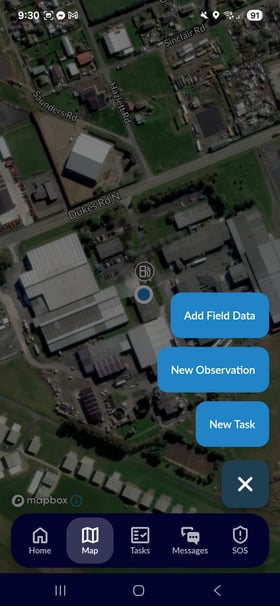
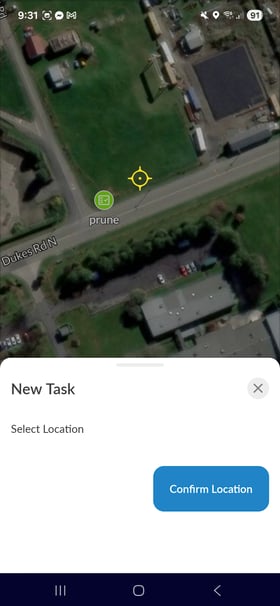
First, select the large blue Add Task Button Plus (+) button and either New Task or New Observation. You can then place a pin at the precise location where the work is required.
|
|
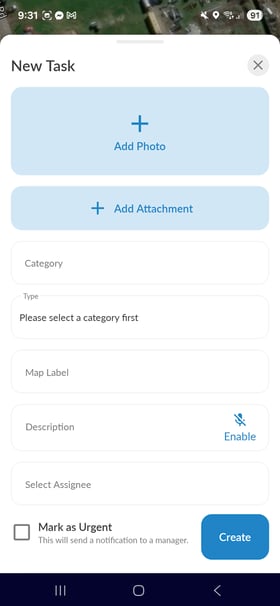
Now, fill out the task details for all the below fields to ensure your team and reporting is set up for success:
- Category: Select the broad category the work falls into (e.g., Crop Management, Maintenance, Irrigation).
- Type: Choose a specific classification for the work. This helps with filtering and reporting and is fully customisable.
- Label: Enter a short, clear title that will appear on the map pin.
- Description: Provide a brief summary of what needs to be done.
Pro-Tip: Tap the microphone icon on your keyboard to use speech-to-text. This is perfect for adding descriptions hands-free while you're on the go.
|
|
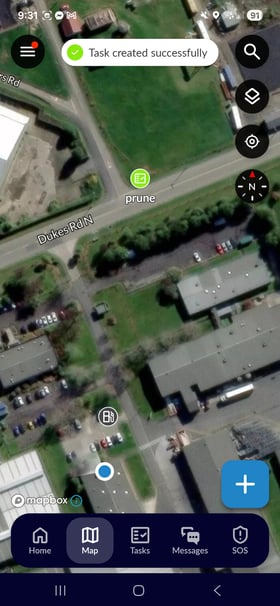
Once you save the task, the user it is assigned to will immediately receive a push notification on their device, alerting them to the new work.
.png?width=100&height=100&name=NEXT%20button%20(2).png)